FIELD NOTES / Accessories
Why a Kali Wi-Fi adapter works on one machine but not another
A desktop troubleshooting path that separates a missing USB device from a firmware problem, an unsupported mode or an unstable connection.
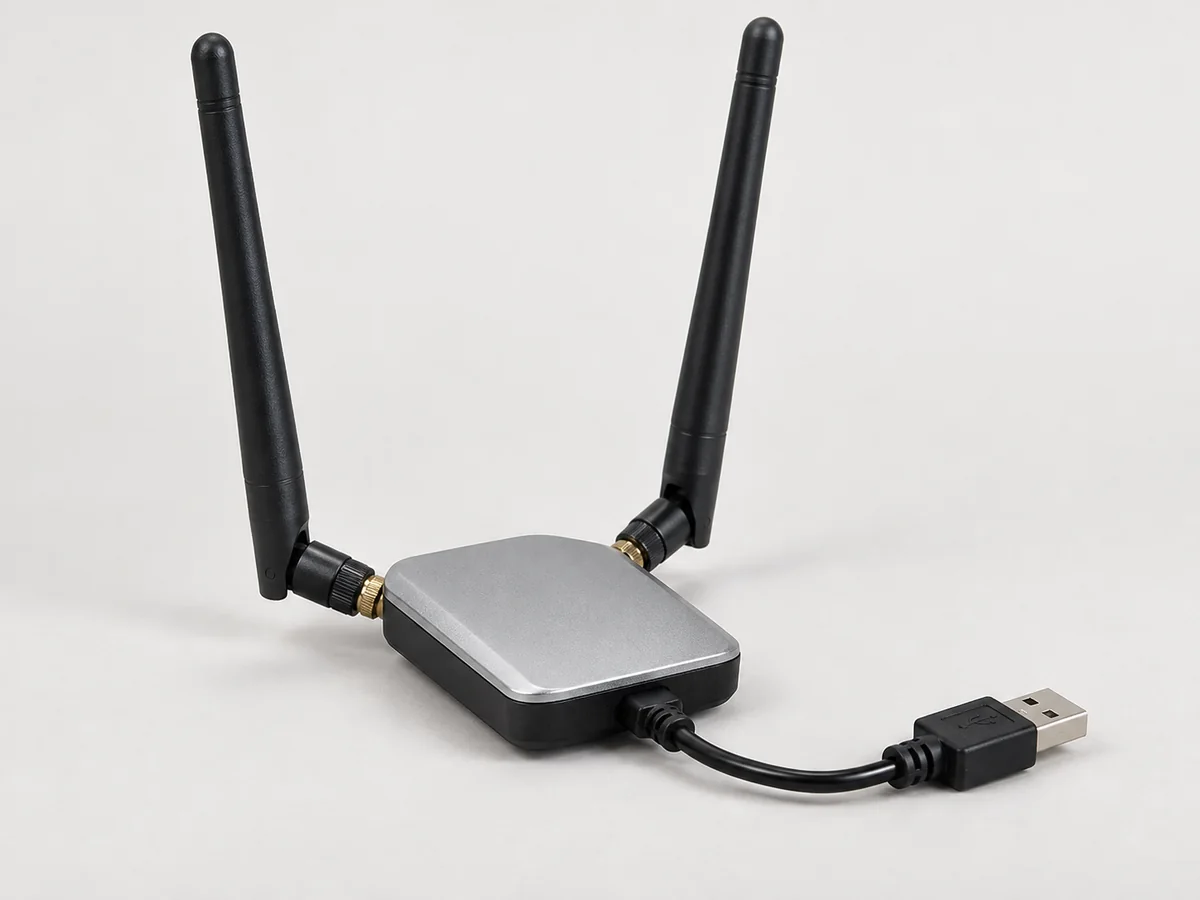
When a Wi-Fi adapter works on one Kali machine and fails on another, compare the host, kernel, firmware and USB connection before replacing the radio. “Compatible with Kali” is an incomplete description: it does not identify the image release, operating mode, hardware revision or power arrangement behind the claim.
Work through the following stages in order. The purpose is to locate the first failing stage, using your own access point and equipment. This article concerns desktop Linux and live laptops. Android NetHunter adds a different kernel and USB-host context, covered in our adapter compatibility guide.
1. Does the computer see a USB device?
Connect the adapter directly to a known working host port where possible, without a hub or extension. Compare lsusb before and after connection. Record the added vendor/product ID and the exact adapter revision. The usbutils manual documents this device listing and lsusb -t, which displays the USB hierarchy.
If nothing appears, wireless configuration is premature. Check the physical connection, an alternative known working port and a suitable data cable if the adapter uses one. Then try the same adapter on the comparison machine. Change one component at a time so that a successful retry tells you something. An illuminated LED alone does not establish that the host has enumerated a data device.
Keep a compact comparison: machine A detects this USB ID through this port; machine B does or does not. Do not assume matching retail names guarantee identical internal hardware. Ask a seller to identify the actual chipset and hardware revision of the proposed unit.
2. Is there a suitable kernel driver?
Record uname -r on both machines. The running kernel matters more than a downloaded installer’s filename. On a live USB, restarting into an older image can also put you back on a different software baseline from the one you thought you had tested.
Look up the chipset in the Linux Wireless driver documentation. For example, AR9271 belongs to the ath9k_htc driver family. MediaTek’s MT7612 USB family appears under mt76 support. These references help identify the expected driver; they do not certify a particular retail adapter, every kernel build or every application.
Use the distribution’s normal tools to inspect whether the relevant driver is present and bound to the device. If the adapter works with a current official image but fails in an old customised installation, preserve that comparison. It is more informative than installing several unrelated driver packages at once.
3. Does the driver have its firmware?
A USB device can be detected even when its wireless firmware has not loaded. Inspect the current kernel log around the time of connection and look for a missing-firmware filename or a device-initialisation failure. Record the short relevant excerpt, not an entire log containing unrelated network identifiers or personal information.
The ath9k_htc documentation explicitly requires firmware for AR9271, and the MediaTek documentation points to the Linux firmware collection for its supported devices. Use those driver references to identify the requirement, then the current distribution packaging to satisfy it. Avoid confusing a firmware file with a replacement kernel driver: they serve different parts of the device setup.
Do not turn a diagnostic exercise into an uncontrolled installation experiment. Kali warns that unrelated repositories can break an installation in its distribution guidance. Keep a record of package changes and retest against the known official baseline before concluding that the hardware is defective.
4. Does the interface support your actual task?
Once a wireless interface exists, check its capabilities. iw list reports hardware capabilities such as bands and supported interface modes; the Linux Wireless iw documentation explains this output. For an existing connection, iw dev INTERFACE link reports link information; replace INTERFACE with the real interface name.
Separate ordinary network connection, the band you need and any specialist lab mode. A successful connection to your own 2.4 GHz access point does not demonstrate 5 GHz or 6 GHz operation. A listed monitor capability is not a completed qualification of every capture or transmission feature in every tool. Ask for the specific mode and test conditions to be recorded.
Check the access point’s band and configuration too. A radio cannot join a network on a band it does not support. Use the lawful regulatory settings for your location; do not use a country-code change as a shortcut to make an unavailable channel appear. Keep the first functional test simple before adding the special conditions your lab requires.
5. Is the connection stable in normal use?
Repeated disconnects need a different investigation from a missing driver. Compare direct connection with the proposed hub arrangement, check a detachable cable, and note whether the problem follows a particular port or appears after suspend and resume. Record whether other devices on the same hub disconnect at the same time.
Linux has USB power-management and suspend mechanisms, documented in the kernel USB power-management guide. That makes power-state behaviour a legitimate diagnostic variable, not proof that every disconnect is caused by autosuspend. Do not disable power management globally without first narrowing the fault and recording the original state.
A powered hub may help a particular configuration, but it cannot add a missing driver or an unsupported radio band. Qualify the whole arrangement after adding it. For a Ghost PC, use the same live release, port and accessories that will be supplied so the result applies to the handover configuration.
Send a support request someone can reproduce
Include adapter model and revision, USB ID, host model, live image release, running kernel, expected driver, relevant firmware error, connection path and the first failing stage. Say which test succeeded on the other computer. Redact unnecessary serial numbers, addresses and network names before sharing logs publicly.
For pent.shop adapter quotations, request this same level of specificity. The catalogue includes chipset-led options and qualification candidates; availability, exact revision and the agreed test scope are confirmed before supply. A reproducible compatibility record is a better buying signal than an unsupported “works with everything” claim.
Sources and further reading
- usbutils lsusb manual
- Linux Wireless ath9k_htc
- Linux Wireless MediaTek drivers
- Kali intended use and repository guidance
- Linux Wireless iw documentation
- Linux USB power management
Project documentation checked for this article on 12 September 2026. Software and hardware requirements can change; use the linked project references for your exact configuration. How we prepare these articles.