FIELD NOTES / Android
NetHunter USB OTG and power: build a mobile kit you can check
A phone-specific checklist for diagnosing USB connections and choosing accessories without assuming every powered hub or USB-C cable will solve the problem.
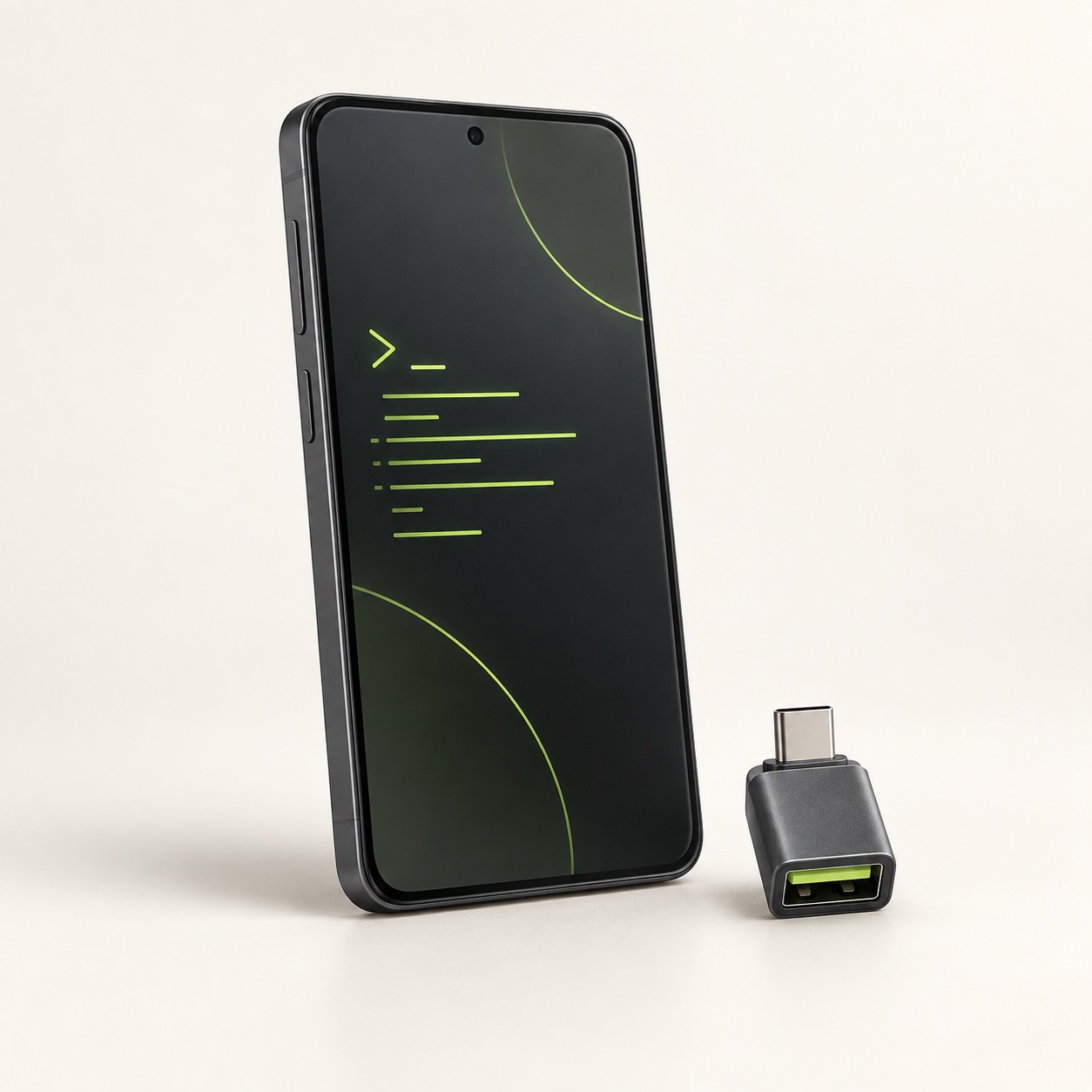
A NetHunter phone makes Linux security tools portable. Add a USB adapter and that portable setup becomes a chain of hardware and software: the phone, its build, the cable, possibly a hub, and the peripheral itself. A fault anywhere in that chain can look like “NetHunter cannot see my adapter”.
Start with a small configuration you can describe and check. This guide focuses on the Android connection and its power arrangements. For chipset selection across Linux systems, use our separate Wi-Fi adapter guide.
USB-C is the connector, not the complete answer
In USB host mode, Android enumerates connected USB devices and the host powers the bus. Android’s documentation also makes clear that USB host support is not guaranteed on every Android device. A matching plug alone is therefore insufficient evidence for a working peripheral connection. See the Android USB host overview.
For your kit, identify the phone model, Android/ROM and kernel; the cable or OTG adapter; any hub; and the exact peripheral revision. If an accessory has several ports with different purposes, record which one you use. A labelled connection sketch can save repeated guesses later.
Check the simple connection first
Begin with the fewest parts: phone, known data-capable OTG connection and a simple peripheral that you can verify normally. Keep your test benign, such as confirming ordinary input from a keyboard you own. This establishes a useful baseline before introducing wireless drivers or a larger power requirement.
Change one part at a time. If you replace the cable, hub and adapter together, a successful result tells you little about which part mattered. Record both failures and successes so you can return to the last configuration that behaved predictably.
| Observation | Next question | Useful record |
|---|---|---|
| No connected USB device appears | Does the simplest known data connection work? | Phone build, cable and port used |
| A device appears but no usable network interface does | Has the required driver and interface been identified? | Device identity and exact error |
| Connection drops during use | Does it also fail with another verified cable or an appropriate powered arrangement? | When it fails and which variable changed |
| The adapter works but the phone does not charge | Is simultaneous charging supported by this complete configuration? | Hub, charger, cable and observed charging state |
Treat power as a separate compatibility question
Kali’s wireless-card documentation discusses external adapters connected over OTG and the phone’s limited ability to supply power. This makes a powered hub worth considering for some combinations. It does not establish that every hub solves every disconnect, or that every phone can charge while acting as a USB host.
Ask the supplier to confirm the exact powered arrangement, including its charger. A hub’s advertised power-delivery figure is not, by itself, a result measured at your phone in host mode. If charging during use matters, put it in your requirements instead of assuming it comes with the words “USB-C PD”.
A USB power meter can be useful when its placement and protocol support suit the setup, but treat it as another component in the connection. Record where it was inserted. If it changes the behaviour, repeat the ordinary check without it before drawing conclusions.
Buy the missing part after identifying its job
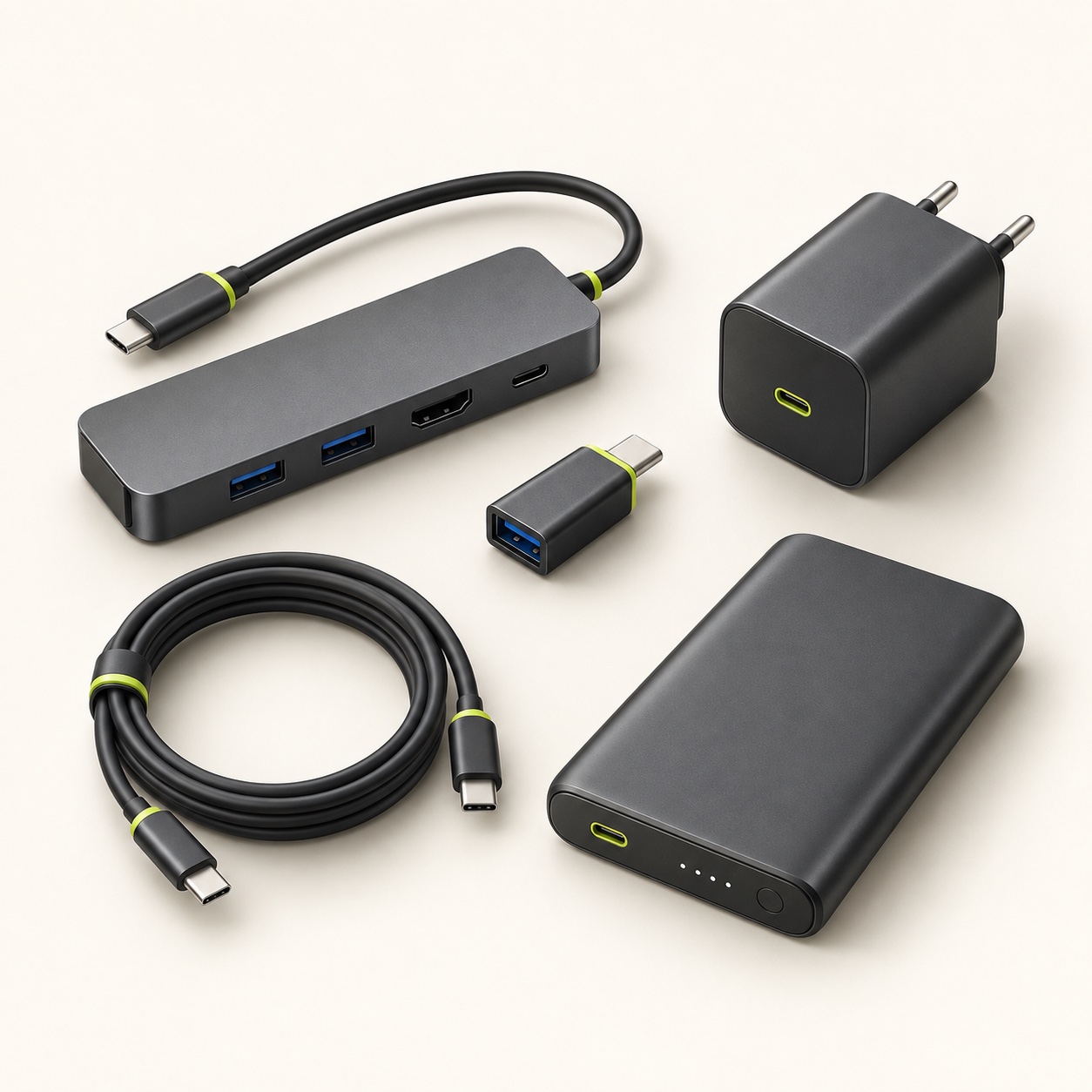
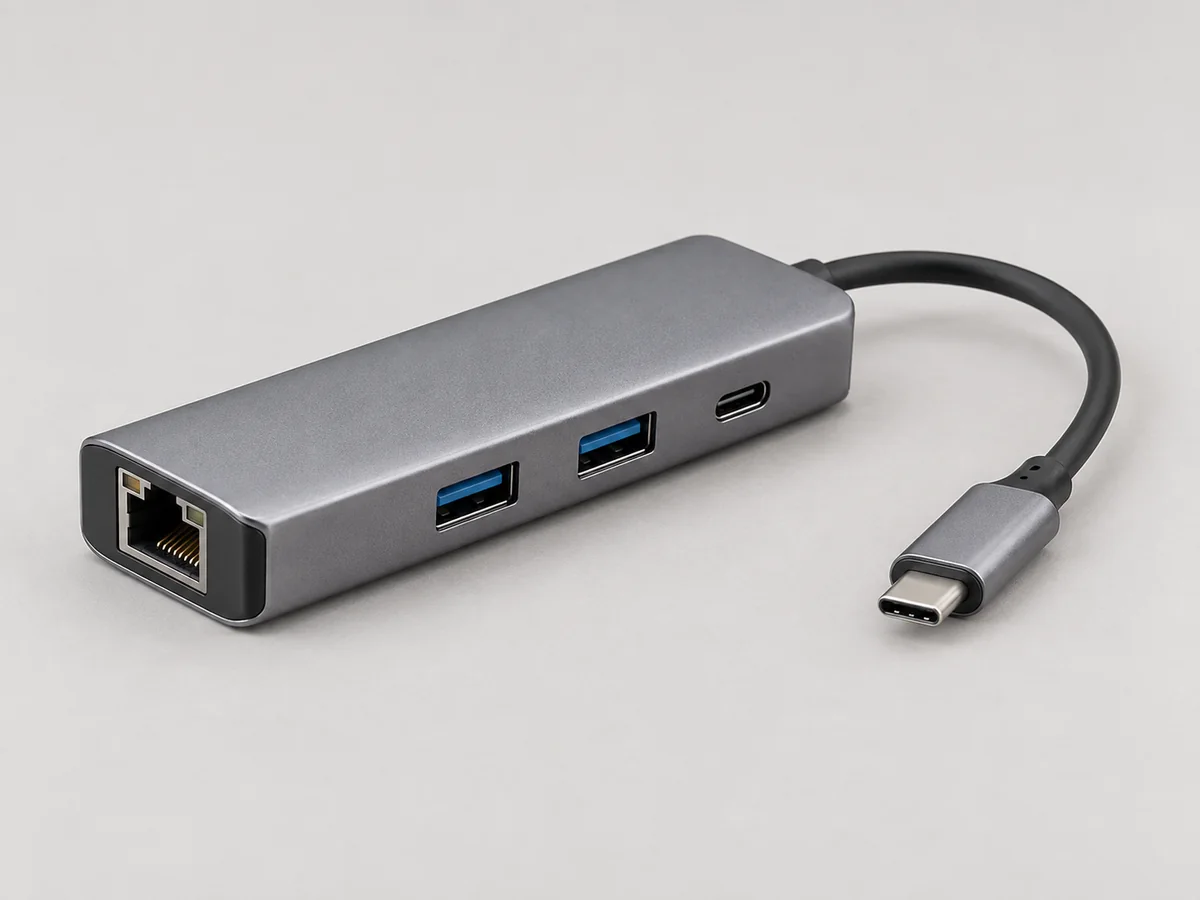
For a short handheld setup, you may only need the appropriate OTG adapter. A desk-based session with several peripherals may justify a powered hub. A PD hub with Ethernet introduces another possible function to verify; it is not automatically a better choice for every phone.
These accessory listings are quotation-led configurations. Give us the phone, build and intended peripheral so the quote can specify the actual items. A generic hub illustration or a guide price is not evidence of a tested combination.
Keep a compact connection record
Once you have a working arrangement, photograph the connections, label the cables and keep a note of software versions. Add the task checked, the duration you actually observed and any interruption. Avoid converting one brief success into an all-day battery claim.
Repeat that same basic check after changing a cable, kernel or hub. A field kit becomes easier to trust when its parts and limits are recorded, rather than when the bag contains the greatest number of accessories.
Sources and further reading
Project documentation checked for this article on 12 September 2026. Software and hardware requirements can change; use the linked project references for your exact configuration. How we prepare these articles.